
Here’s the universal reading app you always wanted.
Whether you’re buying a new ebook or borrowing one from your local library, Aldiko collects all your titles into a single, highly customizable reading app.
Here’s the universal reading app you always wanted.
Whether you’re buying a new ebook or borrowing one from your local library, Aldiko collects all your titles into a single, highly customizable reading app.
Read and listen to all your ebooks and audiobooks immediately.
Every ebook or audiobook you buy or borrow is added to your Aldiko bookshelf. Choose a title and the reader or the audiobook player will open up so you can instantly enjoy the title.
Buy ebooks and audiobooks from our bookstore.
Open up our online bookstore from within Aldiko to choose from over 1.2 million titles. From bestsellers to literary classics coming from the world’s largest publishers to indie publishing houses, we have the titles you want.We have an extensive selection of titles in English, French, German, Spanish and Italian.
Buy the ones you want, add them to your bookshelf, and start reading without ever leaving the app.
Do you have books bought elsewhere? Let’s import them.
DOWNLOAD ALDIKO NOW

Borrow titles from your local library.
Get your library card ready! Aldiko can access compatible library catalogues (thanks to OPDS support) so you can browse and interact with your library’s catalogue.
Check out titles immediately and start reading seamlessly within the app. You can also have access to putting titles on hold or making early returns, too.
BUY
Choose from over 1.2 million titles from our online bookstore.
BORROW
Check out titles from your local library within the app.
READ
Instantly read all your ebooks and listen to all your audiobooks.
Everything for the discerning reader.
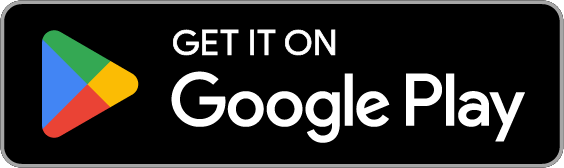
The ebook reader lets you customize your reading experience to your liking. From fonts, to margins, line spacing and text alignment, tweak practically every setting you want. Pick your preferred background colors and brightness levels, or flip to dark mode.
If you like to take notes, you’ll love using Aldiko’s customizable highlighting (or underscoring, if that’s your preference), annotating, bookmarking and full search features. You can even export your annotations!
Your audiobook listening experience is also fully featured: skip foward or back, playback speed controls, bookmarks and background play are all built right in. You can also set a timer to stop the narration after a while. Plus, you can cast to your Chromecast connected devices.
DOWNLOAD ALDIKO NOW